
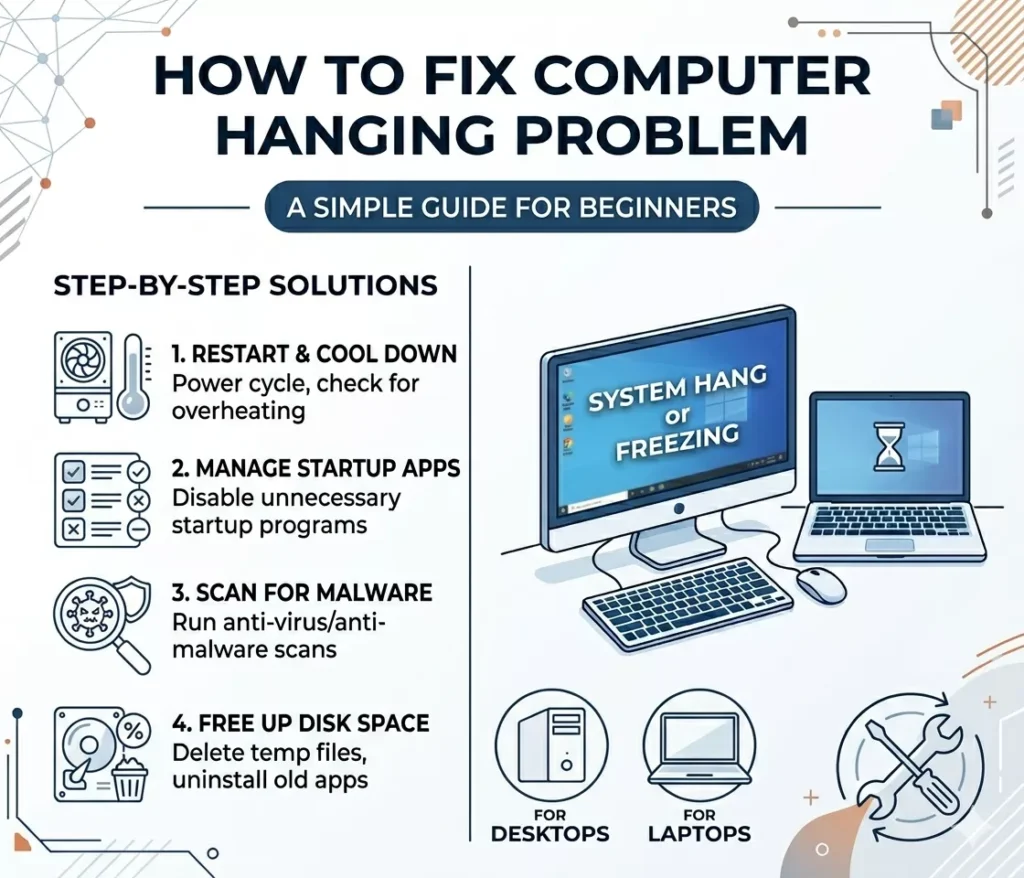
What Does “Hanging” Mean?
Have you ever been playing a game or watching a movie and your computer just… stopped? You try to move the mouse, but it won’t move. You click buttons, but nothing happens. This is called a “hanging” problem.
It feels like your computer is frozen in an ice cube. It is very annoying! You might want to scream, but don’t worry. I am here to help you.
In this guide, we will learn why computers hang and how to fix it. We will use very easy words so everyone can understand. Let’s get your computer moving again!
1. Wait a Little Bit
Sometimes, the computer is just very busy. It is thinking very hard about something. If you keep clicking buttons, it gets even more confused.
Give it 2 minutes
If your computer freezes, take your hands off the mouse. Count to 100. Sometimes, after a minute or two, the computer will finish its “thought” and start working again.
Think of it like a person carrying a lot of boxes. If they trip, they need a moment to get back up. If you push them, they will fall again!
2. Use the “Magic” Keys (Ctrl + Alt + Delete)
If waiting doesn’t work, we can use a special secret code. This code tells the computer to stop what it is doing and listen to you.
How to use the code
1. Press the `Ctrl` key, the `Alt` key, and the `Delete` key all at the same time.
2. A blue screen will pop up. Click on “Task Manager.”
3. Look for any app that says “Not Responding” in red letters.
4. Click on that app and then click “End Task.”
This is like taking a broken toy away from a child. Once the broken toy is gone, the child can play with other things again.
3. Check Your Mouse and Keyboard
Sometimes, the computer isn’t hanging at all! It might just be that your mouse or keyboard has run out of batteries.
Is it plugged in?
Check the wire for your mouse. If it is wireless, try putting in new batteries. Sometimes, the little USB plug (the “dongle”) might have fallen out.
Try plugging the mouse into a different hole (port) on the side of the computer. If the mouse starts moving again, your computer was never frozen!
4. Close Too Many Open Tabs
Do you have 50 websites open at the same time? Each website is like a little weight the computer has to carry. If you carry too many, you will stop walking.
Close the extras
Click the “X” on any website you are not looking at right now. If your browser is the thing that is hanging, you might need to use the “End Task” trick we learned in Step 2.
Keeping only a few tabs open helps the computer stay fast and happy. You can also read our guide on How to Fix Slow Laptop Quickly for more tips on speed.
5. Update Your Computer Software
Just like people need to go to the doctor for a check-up, computers need updates. Updates fix the little “brain bugs” that cause hanging.
Easy update steps
Go to your settings and look for “Windows Update.” If it says “Updates available,” click the button to install them.
Sometimes, an old app is what causes the hang. Updating your apps in the “Store” can also help a lot.
6. Check for Viruses and Malware
A virus is a bad program that tries to break your computer. It can make everything hang because it is stealing all the computer’s power.
Run a quick scan
Your computer has a built-in helper called Windows Security. Ask it to “Quick Scan” your files. If it finds anything bad, it will throw it in the trash for you.
Staying safe online is very important. Don’t click on weird links or download things from sites you don’t know.
7. Give the Computer Some Air
Computers get hot when they work hard. If they get too hot, they might “freeze” to protect themselves from burning.
Keep it cool
Make sure there isn’t dust blocking the little fans on your laptop. If you use a laptop on a fuzzy blanket, the air can’t get in. Put it on a desk instead!
If you want to know more about heat, read How to Fix Laptop Overheating.
8. Check Your Storage Space
If your computer’s “closet” is full of files, it can’t find anything. This makes it hang while it searches through the mess.
Clean the closet
Delete old videos or big games you don’t play anymore. If the bar in “This PC” is red, you need to delete some things right away!
A computer with lots of empty space is a happy, fast computer.
9. Check the Hard Drive for Errors
Sometimes, the part of the computer that stores files gets a little “scratch” on it. We can ask the computer to “heal” itself.
How to scan for errors
1. Open “File Explorer” (the yellow folder).
2. Right-click on your “C:” drive.
3. Click “Properties.”
4. Click the “Tools” tab.
5. Click “Check” under Error Checking.
The computer will look for mistakes and try to fix them. This might take a little time, so be patient.
10. Restart Your Computer Often
Many people just close the lid of their laptop when they are done. This is called “Sleep.” But sometimes, the computer needs a real “Nap.”
Shut down or Restart
Once a day, turn your computer all the way off (Shut Down) or click “Restart.” This cleans out all the junk that built up during the day.
It’s like taking a shower after a long day of playing outside. You feel much better afterward!
Conclusion
A hanging computer is no fun, but now you know how to fix it! Most of the time, just waiting or using the “magic keys” will work. Remember to keep your computer clean, cool, and updated.
If your computer still hangs all the time, you might need to show it to a computer doctor (a repair person). But try these simple steps first!
FAQs (Frequently Asked Questions)
1. Why does my mouse cursor disappear when it hangs?
This happens because the computer is too busy to draw the cursor on the screen. It is concentrating on something else!
2. Can a bad internet connection cause hanging?
Sometimes! If a website is trying to load and the internet is slow, the browser might look like it is hanging. Check your WiFi Signal to be sure.
3. Is hanging the same as a “Blue Screen”?
Not quite. Hanging is when the screen stays the same and won’t move. A “Blue Screen” is when the computer gives up and restarts itself.
4. Will I lose my work if I “End Task”?
Sometimes, yes. If you were writing a story and didn’t save it, ending the task might lose the latest words. Try to save your work often!
5. How much RAM does my computer need to stop hanging?
For most people, 8GB or 16GB of RAM is perfect. If you have less than 4GB, your computer might hang more often.